Add a Resident
Onboard a new resident in under a minute — name, date of birth, room number.
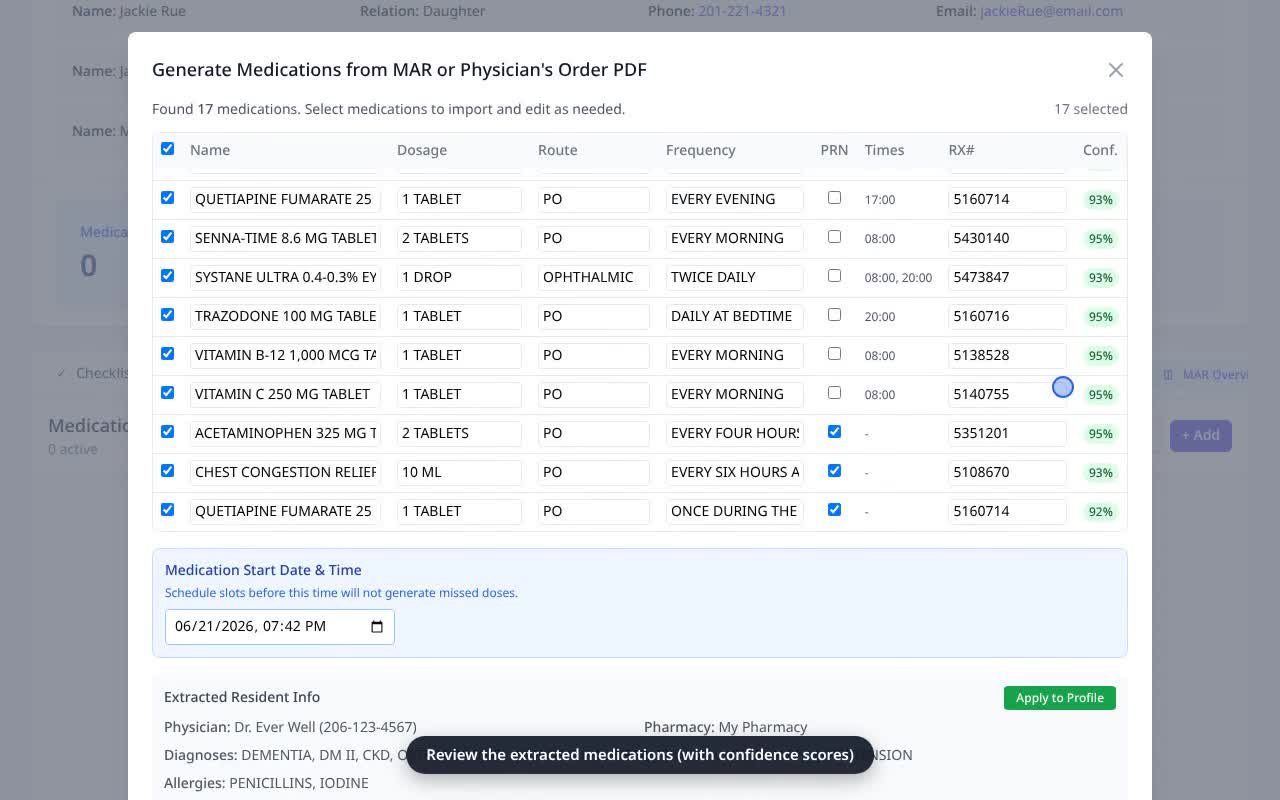
Onboarding a resident shouldn’t mean filling in a two-hundred-field form before you can do anything. VentoFlo needs only a name, a date of birth, and a room number to create the record — from there the face sheet grows on its own, with details added automatically each time you import medications from a MAR or generate a Negotiated Care Plan.
Step by step
- 1
Open Residents
From the dashboard, click Residents to open the roster — your current residents with status, date of birth, and medication and document counts.
- 2
Click “Add Resident”
The “Add New Resident” form opens.
- 3
Enter name, date of birth, and room number
Only first and last name are strictly required. Date of birth and room number are what you’ll want from day one — that’s enough to start charting.
- 4
Leave the rest for later
The form has optional sections for medical information, pharmacy, case manager, emergency contacts and more. You can skip all of it. (A photo can only be added after saving — the form tells you so.)
- 5
Save the resident
Click “Add Resident.” The roster refreshes, the new resident appears as Active, and the counters tick up.
- 6
Let the face sheet fill itself in
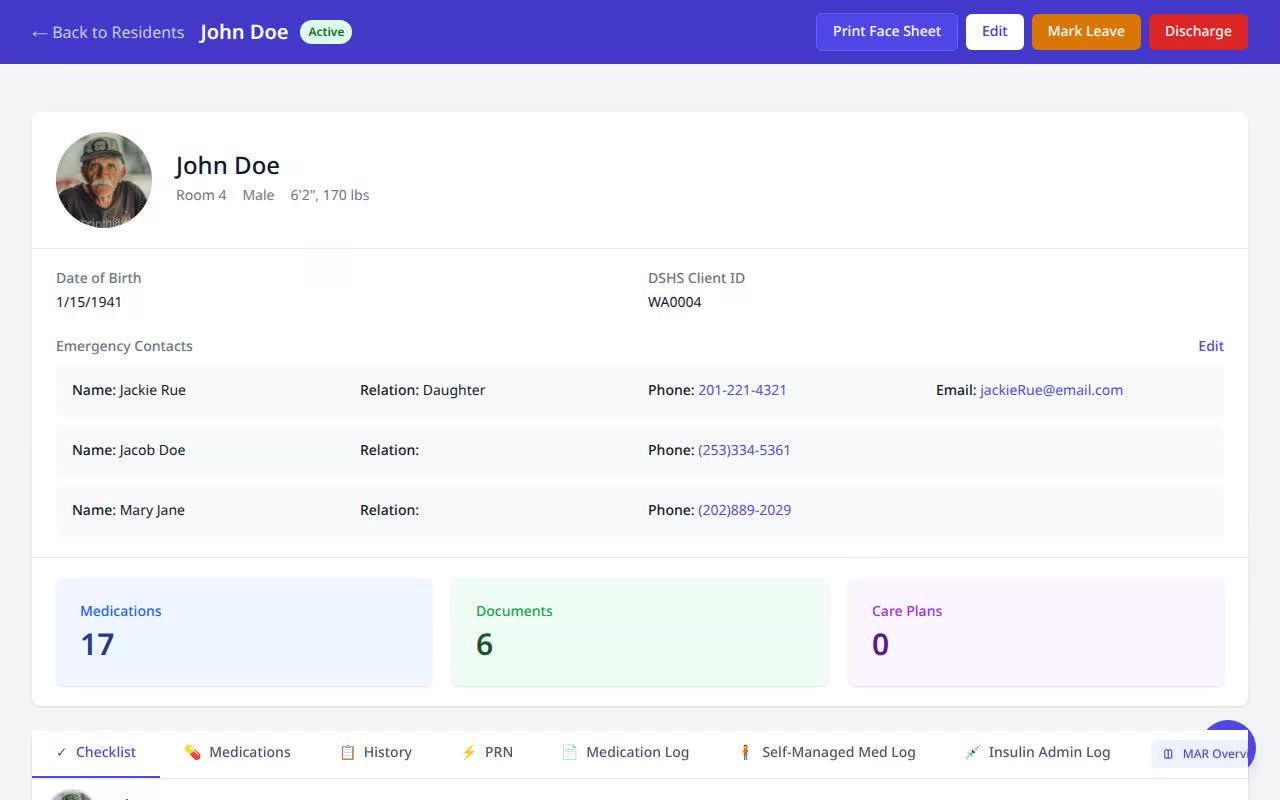
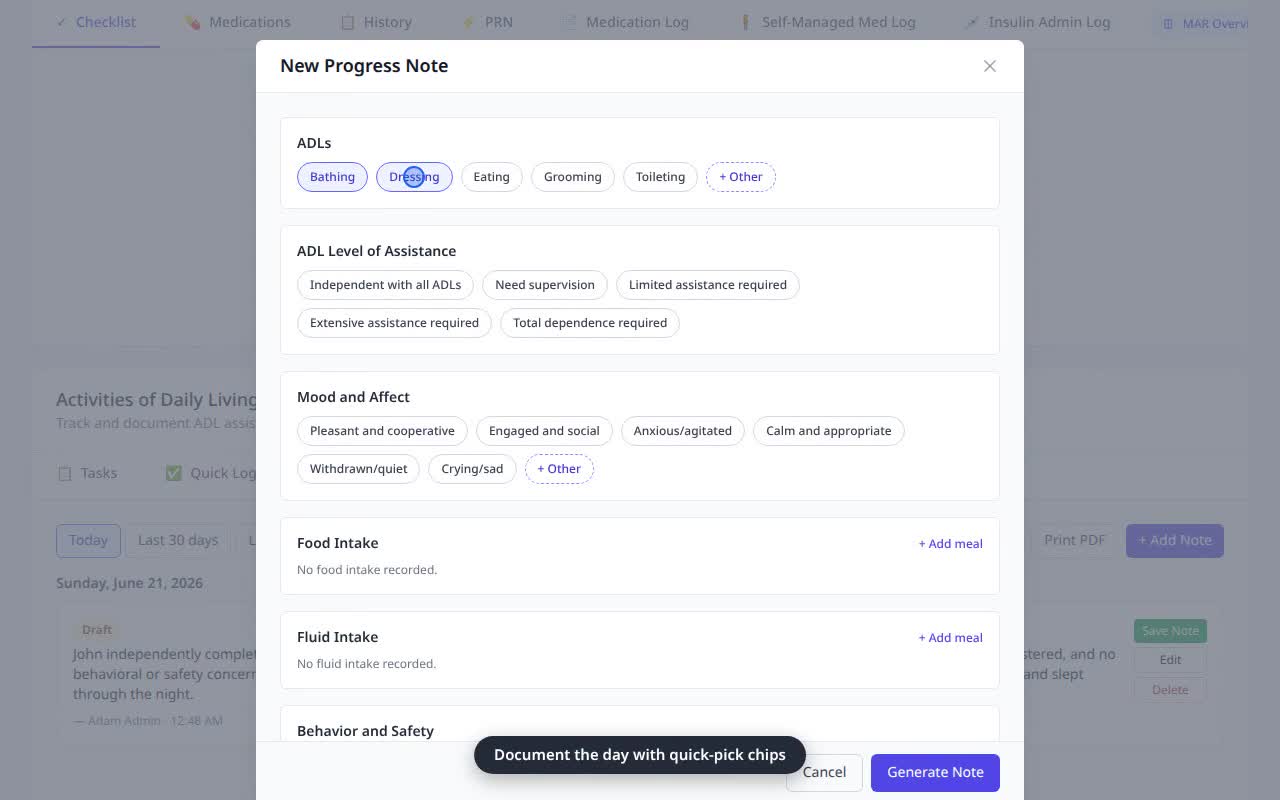
Open the new record and you’ll see it start empty — no tasks, no care team, no classification. It grows automatically from there: medications populate when you import a MAR, and allergies, diagnoses, care team, daily ADL tasks and a CARE classification estimate populate when you generate a Negotiated Care Plan.
Why it matters
- On admission day you can create the record in seconds and start documenting immediately, then complete the profile as the paperwork arrives.
- Resident identity — name, date of birth, room — stays provider-controlled and is never overwritten by AI extraction.
- Because the rest of the profile is built from source documents, the record stays consistent with what’s actually in the chart instead of drifting from re-typed data.